
 Server administration
How to whitelist a Minecraft server: commands and server.properties
Use whitelist commands and server.properties settings to keep a Java server private while you add trusted players.
A whitelist limits who can join a Minecraft Java server. It is useful for private SMPs, family servers, staff testing worlds, creator events, and small community launches.
The short version is simple: turn the whitelist on, add player names, reload the whitelist, then confirm the matching server.properties lines. Do this from the server console or with an operator account in game.
Last reviewed: May 2026. Tested with Java server whitelist commands, server.properties whitelist settings, and ServerBuddy Access Control Builder output.
Quick answer: To whitelist a Java server, run whitelist on, add players with whitelist add PlayerName, run whitelist reload, then check server.properties for white-list=true and enforce-whitelist=true.
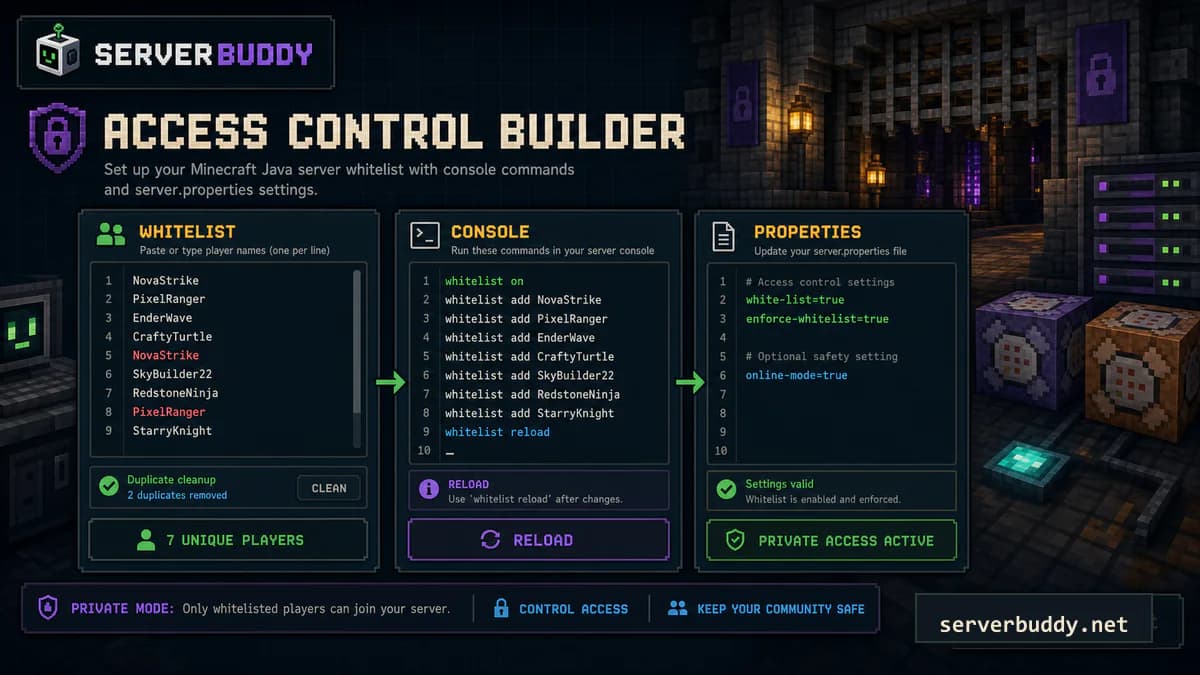
Quick whitelist commands
These are the core whitelist commands. The syntax changes slightly depending on whether you run them from the server console or from chat as an operator.
Console vs in-game whitelist commands
Use console commands without a leading slash. Use slash commands only when you run them in game as an operator.
whitelist on
whitelist add PlayerName
whitelist reload
whitelist list/whitelist on
/whitelist add PlayerName
/whitelist reload
/whitelist listReplace PlayerName with the exact Minecraft username. Usernames are case-insensitive for most command use, but copying the visible account name reduces mistakes when you manage a longer player list.
Adding more than one player? Use the Minecraft whitelist command generator to paste a player list, deduplicate names, generate whitelist add and remove commands, and copy matching server.properties lines.
server.properties settings
Most Java servers also store whitelist behavior in server.properties. For a private server, these two lines are the main settings to check.
white-list=true
enforce-whitelist=true| Setting | Use |
|---|---|
| white-list=true | Turns the whitelist on for new join attempts. |
| enforce-whitelist=true | Keeps whitelist rules strict when players reconnect or when the list changes. |
| white-list=false | Opens the server to anyone who can reach the address. |
Use the server.properties generator if you want to check these lines alongside online-mode, difficulty, PvP, spawn protection, and other launch settings.
Step-by-step setup
- Stop public sharing of the server address until the whitelist is ready.
- Run
whitelist onfrom the console or/whitelist onas an operator. - Add each player with
whitelist add PlayerNameor/whitelist add PlayerName. - Run
whitelist reloadafter batch edits or file changes. - Run
whitelist listto check who can join. - Ask one allowed player and one unlisted test account to try joining if you can.
Do not edit whitelist.json by hand unless the server is stopped and you know the UUID format. For normal server management, console commands are safer.
How to add many players at once
For a small private SMP, manual commands are fine. For a larger launch, paste the player list into the Minecraft whitelist command generator, clean duplicates, then copy the console commands, rollback commands, whitelist.json, or ops.json output you need.
Common whitelist problems
| Problem | Likely cause | Fix |
|---|---|---|
| Player still cannot join | Username typo or whitelist not reloaded | Copy the username, run whitelist add PlayerName, then run whitelist reload. |
| Everyone can join | white-list=false | Set white-list=true, restart or reload, then test with a non-whitelisted account. |
| Player can stay after removal | enforce-whitelist=false | Set enforce-whitelist=true, reload the whitelist, and kick the removed player if needed. |
| Command fails in chat | No operator permission | Run the command from the server console or grant operator permission temporarily. |
| Bedrock setup differs | Different access-control system | Check your Bedrock host, proxy, or server software docs before using Java commands. |
If the server shows offline while you test access, use the why your Minecraft server shows offline guide before inviting players.
Before you open the server
A whitelist is only one part of a clean launch. Check the access list, config, public status, MOTD, icon, and listing readiness before you share the address.
| Check | Good state | Tool |
|---|---|---|
| Whitelist | Only trusted players are listed | Access Control Builder |
| server.properties | white-list and enforce-whitelist are correct | Config Builder |
| Online status | Server responds publicly | Minecraft server status checker |
| MOTD | Short and readable | MOTD generator |
| Icon | 64x64 PNG is visible | Minecraft server icon guide |
| Listing | Server is ready to submit | Add Server |
When those checks pass, add your Minecraft server so ServerBuddy can create a public profile after a successful Server List Ping.
FAQ
How do I whitelist a Minecraft server?
Turn the whitelist on, add trusted player names, reload the whitelist, and confirm white-list=true in server.properties.
What is the command to add someone to a Minecraft whitelist?
From the server console, use whitelist add PlayerName. In game as an operator, use /whitelist add PlayerName.
What is the difference between white-list and enforce-whitelist?
white-list=true turns the whitelist on. enforce-whitelist=true makes the server strictly apply the list when players reconnect or when entries change.
Do I need to restart after changing whitelist settings?
Whitelist commands usually apply immediately after whitelist reload. If you change server.properties, restart the server so the config is loaded cleanly.
Why can a non-whitelisted player still join?
The whitelist may be off, enforce-whitelist may be false, the player may already be connected, or a proxy may be handling access separately.
Where is whitelist.json stored?
On Java servers, whitelist.json lives in the main server folder near server.properties and the server jar.
Does this work on Bedrock servers?
These commands target Java server console syntax. Bedrock servers and proxy networks can use different access-control commands.