
 Server design
Minecraft server icon size: PNG rules, 64x64 format, and how to make one
Use the correct 64x64 PNG format, place server-icon.png in the main server folder, and check the icon beside your MOTD before you promote the server.
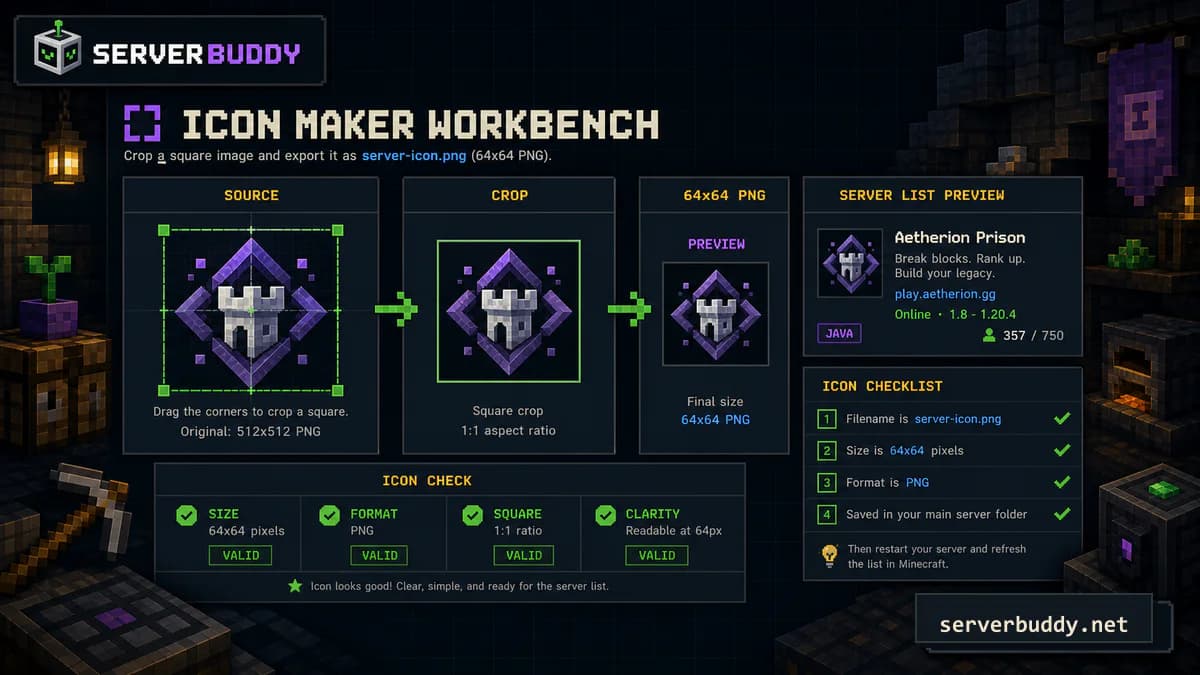
A Minecraft server icon should be a 64x64 PNG named server-icon.png. Put it in the main server folder, keep the design simple, and make sure it still looks clear when shown beside your server name and MOTD.
ServerBuddy's icon maker follows that same rule: it creates a 64x64 PNG named server-icon.png, preserves transparency when the source supports it, and previews the icon at the size players see in a server list.
Last reviewed: May 2026. Tested with Minecraft Java server icon behavior, standard server-icon.png placement, and ServerBuddy icon/status previews.
Minecraft server icon rules at a glance
| Rule | Correct value |
|---|---|
| File name | server-icon.png |
| Size | 64x64 pixels |
| Format | PNG |
| Location | Main server folder |
| Best design | Simple, high-contrast, readable at tiny size |
Already have an image? Use the Minecraft server icon maker to crop it to 64x64 and download the finished server-icon.png.
The correct Minecraft server icon format
Here is the quick checklist.
| Rule | Correct value |
|---|---|
| File name | server-icon.png |
| Image type | PNG |
| Image size | 64x64 pixels |
| Shape | Square |
| Best design | One clear symbol, high contrast, little text |
| Common location | Main server folder, often beside server.properties and the server jar |
| Best next step | Restart the server, then check the icon in the server list |
The file name matters. server-icon.png is not the same as server-icon.PNG, server_icon.png, server-icon.png.png, or icon.png.
The image type matters too. Do not just rename a JPG or WebP file to .png. Convert it to a real PNG first. The ServerBuddy icon maker accepts PNG, JPG, and WebP uploads, then outputs a valid server-icon.png.
Where to put server-icon.png
Put server-icon.png in the main server folder, not inside a world folder, plugin folder, resource pack folder, or web assets folder.
/my-minecraft-server
  server.jar
  server.properties
  whitelist.json
  ops.json
  world/
  plugins/
  server-icon.png
If you use a hosting panel, open the file manager for the server instance and upload server-icon.png to the top-level directory. If you use SFTP, upload it to the same folder where your server.properties file lives.
If you use a proxy setup such as Velocity, BungeeCord, or Waterfall, check the proxy documentation too. Players may see the icon served by the proxy rather than by one backend server.
Why the icon matters
A good icon makes the server easier to recognize in the multiplayer list, especially when players save several similar SMP or Survival servers. It sits beside your server name, MOTD, version, and player count, so a blurry or missing icon makes the listing feel unfinished.
A good icon helps with three jobs.
| Job | What the icon should do |
|---|---|
| Recognition | Make returning players spot your server faster |
| Trust | Make the server look maintained |
| Readability | Stay clear at 64x64, even on smaller screens |
Do not try to fit a full banner into the icon. A single letter, mascot head, simple block shape, or high-contrast symbol usually works better than a detailed scene.
How Minecraft uses the server icon
When a Minecraft client checks a server for the multiplayer list, it uses Server List Ping. That response can include version, player count, MOTD text, and an optional favicon field. The favicon value is PNG data encoded into the status response, which is why the image format needs to be correct.
In normal server-owner terms, you do not need to edit that response by hand. You usually just add the right server-icon.png file to the server folder, then the server software handles the status response.
How to make a Minecraft server icon
The fastest method is to start with a larger square image, then crop and resize it down to 64x64.
If you are starting from a logo, open the Minecraft server icon maker before uploading the finished icon to your host panel or server folder.
- Start with a simple logo, symbol, or square image.
- Open the Minecraft server icon maker.
- Upload your PNG, JPG, or WebP image.
- Crop it into a square.
- Check the actual-size preview.
- Download the file as
server-icon.png. - Upload it to your main server folder.
- Restart the server.
- Check the icon in Minecraft or with the Minecraft server status checker.
ServerBuddy's Minecraft server status checker can resolve public Java and Bedrock addresses, auto-detect edition, and show latency, version, protocol, players, MOTD, and icon. It can also show failure reasons like DNS failure, timeout, connection refused, or invalid response.
How to make the icon readable at 64x64
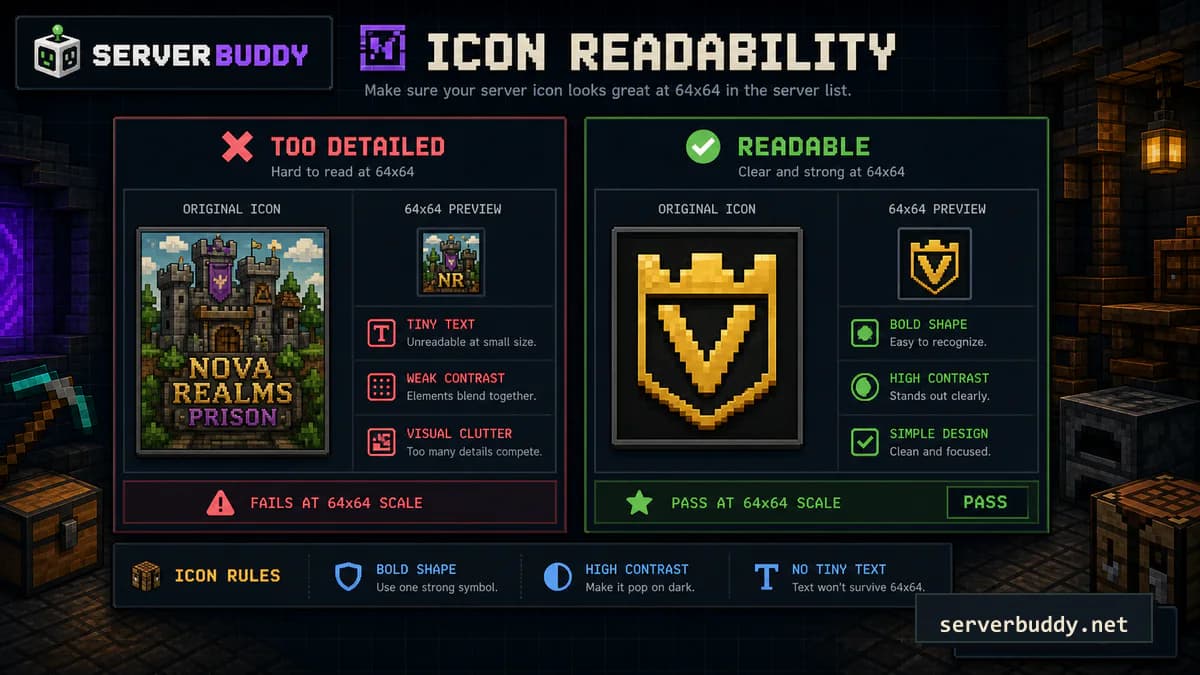
A 64x64 icon is tiny. Detailed artwork often looks good in your image editor and bad in Minecraft.
| Do | Avoid |
|---|---|
| Use one main shape | Full server banners |
| Use strong contrast | Dark text on dark background |
| Leave padding around the edges | Details touching every border |
| Test at actual size | Judging only from a large preview |
| Use simple letters or symbols | Long server names inside the icon |
ServerBuddy's own icon maker warns that if small details disappear in the preview, you should simplify the source image before using it.
Good icon ideas by server type
For a survival SMP, use a leaf, campfire, shield, mountain, or simple lettermark. For Skyblock, use a floating island shape or cloud. For Factions, use a shield, banner, sword silhouette, or territory-style mark. For Pixelmon-style servers, use a custom creature-inspired symbol, but avoid copying protected franchise artwork. For minigame servers, use one recognizable shape tied to the main game mode.
The safest choice is usually a custom mark that belongs to your server, not a borrowed logo from another server, game, creator, or brand.
How to change an existing Minecraft server icon
- Stop the server.
- Delete or rename the old
server-icon.png. - Upload the new
server-icon.png. - Start the server again.
- Refresh the server list in Minecraft.
- Check the public status with ServerBuddy.
If the old icon still appears, the cause is often caching. Fully restart the server, refresh the multiplayer screen, and check from another device if needed. Hosting panels and proxies may also cache the status response for a short time.
Common Minecraft server icon problems
| Problem | Likely cause | Fix |
|---|---|---|
| The icon does not appear | Wrong file name | Rename it exactly to server-icon.png |
| The icon is blank | Image was not a real PNG | Convert it to PNG, do not just rename it |
| The icon looks blurry | Source image had too much detail | Use a simpler symbol and export again |
| The icon is stretched | Source was not square before resizing | Crop to a square before exporting |
| The old icon still shows | Server or proxy cache | Restart the server and refresh the list |
| Server status looks offline | Status response is disabled or blocked | Check server status, firewall, DNS, and enable-status |
On Paper-based Java servers, enable-status=false makes the server appear offline in the server list and disables the listener used to get server information, even though players may still connect. Keep that setting in mind if the icon problem is part of a bigger status problem.
If you are cleaning up the wider server setup at the same time, use the Minecraft Config Builder to check server.properties values before you restart.
Check the icon before listing your server
Before you promote the server, check the full server-list card, not just the icon file. Players see the icon with your MOTD, version, and player count, so those pieces should work together.
Use the MOTD & Text Designer to preview a realistic two-line server-list card with an icon, version, and MOTD text. It can export section-sign output, ampersand output, server.properties MOTD text, and MiniMessage formats.
Then run the server through the Minecraft server status checker. If the status checker can see your server icon, MOTD, version, and players, your public listing is in much better shape.
After the icon works, add the server to ServerBuddy
Once your server responds publicly, submit it through Add your Minecraft server. ServerBuddy requires the server to be online and respond to a valid Server List Ping when checked. After verification, it creates a public profile with live player count, MOTD, version, uptime, and activity history.
That profile gives players more than a logo. The Minecraft server list lets them see whether the server is online, active, and worth joining.
Quick checklist
- The file is named exactly
server-icon.png. - The image is a real PNG.
- The size is 64x64 pixels.
- The design is readable at actual size.
- The file is in the main server folder.
- The server has been restarted.
- The icon appears in Minecraft's multiplayer list.
- The icon appears in a public status check.
FAQ
What size should a Minecraft server icon be?
A Minecraft server icon should be 64x64 pixels. Use a square PNG file named server-icon.png.
Can I use a JPG as a Minecraft server icon?
The final server icon should be a PNG. You can start with a JPG or WebP image, but convert it to PNG before uploading it to the server.
Where does server-icon.png go?
Put server-icon.png in the main server folder, near files like server.properties, not inside plugins, world, or a resource pack folder.
Why is my Minecraft server icon not showing?
Common causes include a wrong file name, wrong folder, wrong image format, wrong dimensions, server cache, proxy cache, or a server status issue.
Can a Minecraft server icon be transparent?
Yes. Transparency can work when the final file is a valid PNG. ServerBuddy's icon maker preserves transparency when the source image supports it.
How do I change my Minecraft server icon?
Stop the server, replace the old server-icon.png file, start the server again, then refresh the multiplayer list and check the public status response.