
 Server administration
Minecraft server properties explained: every important setting
Learn the important Minecraft server.properties settings for Java servers, including safe public defaults, MOTD, ports, whitelist, performance, RCON, and launch checks.
server.properties is the main config file for a Minecraft Java server. It controls the address and port, MOTD, max players, whitelist, game mode, difficulty, PvP, view distance, resource packs, RCON, and other settings that affect how players connect and what they experience after joining. PaperMC's reference lists the current settings and default values for the file. (PaperMC Docs)
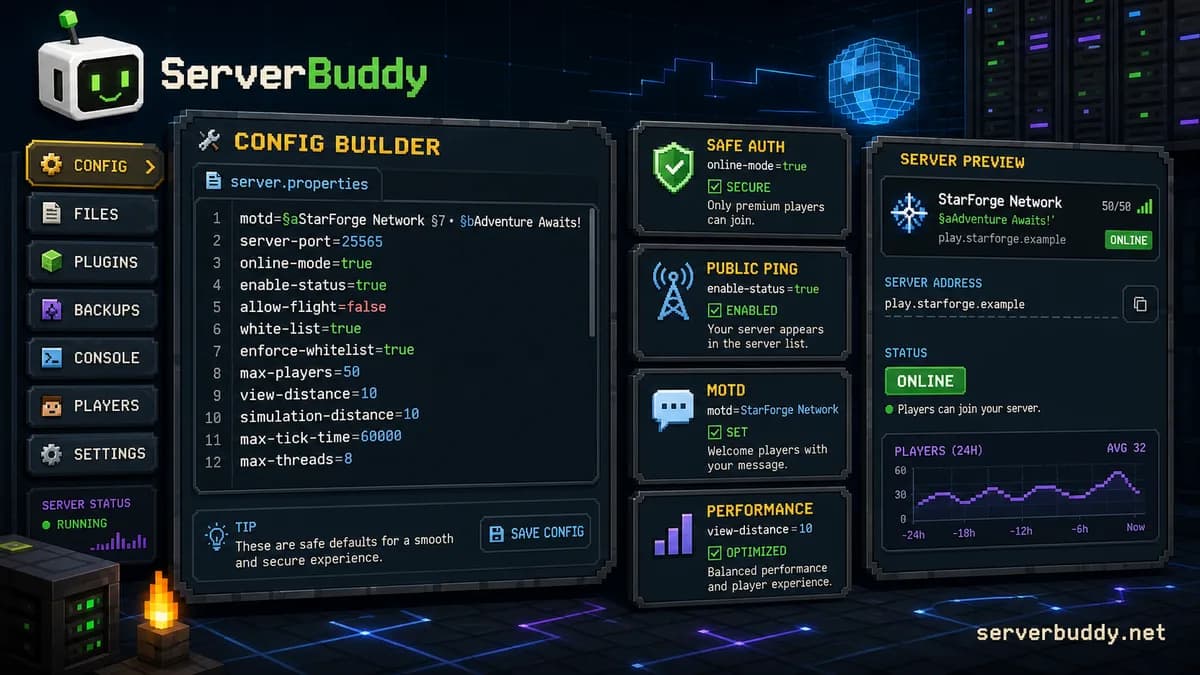
For most server owners, the safest workflow is simple: edit a copy, avoid changing values you do not understand, restart the server, then test the public status. You can also use ServerBuddy's server.properties generator to start from a preset, import your existing file, compare changed values, and download a clean config.
Last reviewed: May 2026. Tested with Java server.properties behavior, Paper-style Java server defaults, and ServerBuddy Config Builder output.
Quick answer
For a public Minecraft Java server, the most important server.properties settings are usually:
motd=Your Server Name | Survival 1.21+
server-port=25565
server-ip=
max-players=40
gamemode=survival
difficulty=normal
pvp=true
online-mode=true
white-list=false
enforce-whitelist=false
enable-status=true
view-distance=10
simulation-distance=10
enable-rcon=false
Keep online-mode=true for public servers. Leave server-ip blank unless your host specifically tells you to bind to a local address. Keep enable-status=true if you want the server to show as online in server lists and public status tools.
What is server.properties?
server.properties is a plain text file in the main folder of a Minecraft Java server. The server reads it on startup and uses it to decide how the server should behave.
A typical server folder looks like this:
/my-minecraft-server
  server.jar
  server.properties
  eula.txt
  ops.json
  whitelist.json
  world/
  plugins/
Each line uses this format:
setting-name=valueFor example:
max-players=20
difficulty=normal
pvp=true
Most changes should be followed by a restart. Some actions, such as whitelist commands, can update live behavior, but server.properties should be treated as a startup config unless your server software or host panel says otherwise.
Before you edit server.properties
Back up the file first. It is small, and a backup can save you from a broken launch.
Use this process:
- Stop the server.
- Copy
server.propertiestoserver.properties.backup. - Edit the file in your host panel, SFTP editor, or local text editor.
- Save the file.
- Start the server again.
- Test that players can connect.
- Check the public status with the Minecraft server status checker.
ServerBuddy's status checker resolves DNS and SRV records, auto-detects Java or Bedrock, and shows latency, version, protocol, players, MOTD, and icon, plus failure reasons like DNS failure, timeout, connection refused, or invalid response. (ServerBuddy)
The settings most owners edit first
These are the settings new server owners usually need before inviting players.
| Setting | Common value | What it changes | Safe advice |
|---|---|---|---|
motd | A Minecraft Server | Text shown in the multiplayer server list | Keep it short and readable |
server-port | 25565 | Java connection port | Change only if your host or network needs it |
server-ip | blank | Local bind address | Leave blank unless your host tells you otherwise |
max-players | 20 | Visible player slot limit | Set a number your hardware can handle |
gamemode | survival | Default game mode | Use survival for most SMPs |
difficulty | easy or normal | World difficulty | Use normal for public survival unless you want easier play |
pvp | true | Player combat | Set false for peaceful SMPs |
online-mode | true | Mojang account authentication | Keep true on public servers |
white-list | false | Whether only listed players can join | Use true for private servers |
enforce-whitelist | false | Strict whitelist enforcement | Use with white-list=true for private communities |
view-distance | 10 | Chunks sent to clients | Lower it if the server lags |
simulation-distance | 10 | Chunks where entities tick | Often the better setting to lower first |
enable-status | true | Server list ping response | Keep true for public listings |
PaperMC documents motd, max-players, online-mode, server-ip, server-port, simulation-distance, view-distance, and whitelist behavior in its server.properties reference. (PaperMC Docs)
MOTD and server list settings
motd
Default:
motd=A Minecraft ServerThe MOTD is the message players see under the server name in the multiplayer list. It is also one of the first things people see on public server lists.
Good MOTDs are short. They usually mention the server name, main mode, and supported version.
Good example:
motd=Quartz Harbor SMP | Survival 1.21+Weak example:
motd=Welcome everyone to the best amazing new survival economy SMP server with events and giveawaysLong MOTDs get cut off. Color codes can work, but messy formatting makes a server look unfinished. Use the MOTD generator if you want a two-line preview and server.properties output.
enable-status
Default:
enable-status=trueThis controls whether the server responds to status requests used by the Minecraft server list. If it is off, the server can appear offline in a server list even when direct connection still works. PaperMC notes that turning it off makes the server appear offline while players can still connect. (PaperMC Docs)
For a public server, keep this on.
hide-online-players
Default:
hide-online-players=falseThis hides the player list sent with status request packets. It does not make the server private. It only limits what the status response shares.
Use it if you do not want public pings to show player names. Do not use it as a privacy system. Use a whitelist for that.
Connection settings
server-port
Default:
server-port=25565This is the Java server port. Most Java servers use 25565. If you change it, players may need to connect with the port included:
play.example.com:25566If your server works locally but not publicly, changing this value is usually not the first fix. Check port forwarding, host firewall rules, and whether your public address points to the right machine.
server-ip
Default:
server-ip=Most public servers should leave this blank. PaperMC describes it as the IP address the server binds to and says a blank value binds to all interfaces. (PaperMC Docs)
A common mistake is putting the public IP here. That can break hosting setups because the server may try to bind to an address that does not exist on the local machine. ServerBuddy's Config Builder also warns owners to leave server-ip blank unless the host specifically requires a bind address. (ServerBuddy)
Use:
server-ip=Do not use this unless your host panel tells you to:
server-ip=123.45.67.89enable-query and query.port
Defaults:
enable-query=false
query.port=25565
enable-query enables the older GameSpy4 query listener. It is not the same as normal server list ping. Most small servers do not need it unless a plugin, panel, or third-party tool specifically uses query data.
If you enable it, keep the query port aligned with your network rules.
Authentication and public safety
online-mode
Default:
online-mode=trueThis is one of the most important settings in the file. When online-mode=true, the server checks connecting players against Minecraft's account database. PaperMC notes that this requires valid Minecraft accounts and blocks cracked players. (PaperMC Docs)
For a public server, keep:
online-mode=trueAvoid this on public servers:
online-mode=falseonline-mode=false is sometimes used behind a correctly configured proxy network, but that setup needs separate security controls. On a normal public server, it can allow name spoofing and account impersonation.
prevent-proxy-connections
Default:
prevent-proxy-connections=falseThis setting checks whether the ISP or autonomous system from Mojang authentication differs from the one used by the player connection. It can block some proxy or VPN behavior, but it can also create false positives.
Use it carefully. Do not turn it on without testing with normal players.
enforce-secure-profile
Default:
enforce-secure-profile=trueWhen true, players without a Mojang-signed public key cannot connect. Leave this enabled unless you know your version, proxy, or modded environment requires different behavior.
Player slots and access control
max-players
Default:
max-players=20This is the maximum number of players that can be online at the same time. It does not mean your server can run smoothly with that many players.
A small private SMP might use:
max-players=10A public server with enough CPU, RAM, and optimized settings might use:
max-players=50Do not set max-players=500 just to look big. Empty oversized slots can look strange, and the server still needs enough performance for the real player count.
white-list
Default:
white-list=falseWhen enabled, only players on the whitelist can join.
Use this for private SMPs, creator events, test servers, staff previews, and family servers.
white-list=trueFor public servers:
white-list=falseenforce-whitelist
Default:
enforce-whitelist=falseThis makes the whitelist stricter. PaperMC describes it as kicking players who are not on the whitelist. (PaperMC Docs)
For a private server, pair both settings:
white-list=true
enforce-whitelist=true
See the whitelist guide for the full command flow, white-list=true, enforce-whitelist=true, and common join problems. This section stays short so you can keep the rest of server.properties in context.
Gameplay settings
gamemode
Default:
gamemode=survivalAllowed values include:
survival
creative
adventure
spectator
Use survival for most SMPs and public survival servers. Use creative for build servers. Use adventure only when your maps or plugins are built around it.
force-gamemode
Default:
force-gamemode=falseWhen true, players are forced into the default game mode when they join. If a player logged out in creative but the server default is survival, they return in survival.
Use it when you want strict mode consistency:
force-gamemode=trueLeave it false if staff or builders need to keep custom game modes.
difficulty
Default:
difficulty=easyAllowed values are:
peaceful
easy
normal
hard
For public survival, normal is a common choice:
difficulty=normalUse peaceful for casual build servers. Use hard only if the server is designed around harder survival.
pvp
Default:
pvp=trueThis controls whether players can damage each other.
For a peaceful SMP:
pvp=falseFor factions, lifesteal, anarchy, or PvP servers:
pvp=trueChanging this does not replace region protection, claim plugins, or moderation rules. It only controls direct player combat.
hardcore
Default:
hardcore=falseWhen true, death has hardcore behavior. PaperMC notes that players are set to spectator mode after death. (PaperMC Docs)
Use this only if the entire server is meant to be hardcore.
spawn-protection
Default:
spawn-protection=16This protects the spawn area when there is at least one operator. PaperMC describes it as using a 2x+1 side-length formula, so spawn-protection=16 creates a larger protected square around spawn. (PaperMC Docs)
For public servers, keep some spawn protection:
spawn-protection=16For private servers where everyone is trusted:
spawn-protection=0player-idle-timeout
Default:
player-idle-timeout=0A value of 0 disables idle kicking. A value like 30 kicks players who are idle for more than 30 minutes.
For small private servers, leaving it off is fine. For busy public servers with limited slots, an idle timeout can free space.
player-idle-timeout=30allow-flight
Default:
allow-flight=falseThis does not give players creative flight. It controls whether survival players are kicked for flying. PaperMC notes that flight can happen because of hacks, but false positives can occur. (PaperMC Docs)
Leave it false for vanilla survival:
allow-flight=falseSet it true if your server uses plugins, mods, elytra mechanics, launch pads, or minigames that can trigger false kicks:
allow-flight=truePerformance settings
view-distance
Default:
view-distance=10This controls how much world data the server sends to each client, measured in chunks from the player. PaperMC lists the default as 10 and describes it as the server-side viewing distance. (PaperMC Docs)
Higher values look better but cost more CPU, memory, and bandwidth.
Good starting points:
| Server type | Suggested starting value |
|---|---|
| Small private SMP | 10 |
| Public survival | 6 to 10 |
| Busy hub or minigame server | 4 to 8 |
| Low-resource server | 4 to 6 |
simulation-distance
Default:
simulation-distance=10This controls how far away living entities are ticked by the server. PaperMC describes it as the maximum distance from players where living entities update. (PaperMC Docs)
If the server lags, lowering simulation-distance often helps more than lowering view-distance, because it reduces active entity and redstone work.
Common public-server setup:
view-distance=8
simulation-distance=6
entity-broadcast-range-percentage
Default:
entity-broadcast-range-percentage=100This controls how far away entities are sent to clients as a percentage of the default range. Lowering it can reduce network and client load, but it can also make entities appear later.
Leave it alone unless you are tuning a busy server.
network-compression-threshold
Default:
network-compression-threshold=256This controls when packets are compressed. PaperMC notes that a negative value disables compression. (PaperMC Docs)
Most owners should leave this at the default. Change it only when following your server software's performance guidance.
max-tick-time
Default:
max-tick-time=60000This is the watchdog limit. If a tick takes too long, the server can stop itself instead of hanging forever. PaperMC explains that setting it to -1 disables the watchdog. (PaperMC Docs)
Do not disable it just to hide lag. Fix the lag source instead.
sync-chunk-writes
Default:
sync-chunk-writes=trueThis affects how chunk data is written. PaperMC notes that it has no effect on Paper by default unless the matching system property is also set. (PaperMC Docs)
Most owners should leave it alone.
use-native-transport
Default:
use-native-transport=truePaperMC describes this as a Linux performance boost. (PaperMC Docs)
Keep it enabled unless your host or logs say it is causing problems.
rate-limit
Default:
rate-limit=0A value of 0 disables the packet rate limit. This is not a full anti-DDoS system. For public servers, use proper hosting, firewall rules, and server-side protection instead of relying only on this value.

World settings
level-name
Default:
level-name=worldThis is the world folder name. If you change it, the server looks for or creates a different world folder.
Example:
level-name=season-2Do not rename this casually after a live launch. If you point it at an empty folder name, the server may generate a new world and make it look like your old world disappeared.
level-seed
Default:
level-seed=Leave it blank for a random seed. Set it before first world generation if you want a specific seed.
level-seed=8675309Changing the seed after the world already exists does not rewrite already generated chunks.
level-type
Default:
level-type=minecraft:normalThis controls world generation type. PaperMC lists values such as normal, flat, large biomes, amplified, and others. (PaperMC Docs)
Most survival servers should leave:
level-type=minecraft:normalUse flat worlds for creative plots, testing, or controlled building environments.
generator-settings
Default:
generator-settings={}This is for custom world generation settings. Leave it as {} unless you know the exact format your server version expects.
generate-structures
Default:
generate-structures=trueThis controls whether structures such as villages generate. PaperMC lists it as the setting for structure generation. (PaperMC Docs)
Use:
generate-structures=trueMost survival players expect villages, temples, and other structures to exist.
max-world-size
Default:
max-world-size=29999984This limits the maximum allowed world radius for generation. It is not the same as a world border.
Most owners should use an in-game world border or plugin rule instead of changing this.
Resource pack settings
Resource pack settings are useful when your server needs custom textures, sounds, models, or UI assets.
resource-pack
Default:
resource-pack=This is the URL to the server resource pack.
require-resource-pack
Default:
require-resource-pack=falseWhen true, players must accept the resource pack to join. PaperMC notes that players are kicked if they do not use the required pack. (PaperMC Docs)
Use this only when the pack is required for gameplay.
resource-pack-prompt
Default:
resource-pack-prompt=This is the message shown when the client is prompted to download the pack.
Keep it short:
resource-pack-prompt=Required for custom items and sounds.resource-pack-sha1
Default:
resource-pack-sha1=This verifies the resource pack. PaperMC recommends setting it so players download the correct pack. (PaperMC Docs)
If you use a required resource pack, set the hash correctly. Do not paste a random value.
resource-pack-id
Default:
resource-pack-id=This is the UUID for the server resource pack. Use it when your server version and resource pack workflow require it.
Admin and command settings
op-permission-level
Default:
op-permission-level=4This controls the default permission level for players added with /op. PaperMC lists allowed values from 0 to 4. (PaperMC Docs)
For most servers, be careful with operator access. Do not use /op as a normal rank system. Use permissions plugins for public servers.
function-permission-level
Default:
function-permission-level=2This controls the default permission level for functions. Leave it at the default unless a datapack or admin workflow requires a change.
broadcast-console-to-ops
Default:
broadcast-console-to-ops=trueThis sends console command output to online operators. It is useful for staff awareness, but it can be noisy.
broadcast-rcon-to-ops
Default:
broadcast-rcon-to-ops=trueThis sends RCON command output to operators. If you use RCON automation, decide whether staff should see those outputs.
RCON settings
enable-rcon
Default:
enable-rcon=falseRCON allows remote access to the server console. PaperMC describes it as remote console access. (PaperMC Docs)
For most owners:
enable-rcon=falseEnable it only when you need it for a trusted panel, bot, or automation tool.
rcon.port
Default:
rcon.port=25575This is the RCON port, not the player connection port.
rcon.password
Default:
rcon.password=Never leave RCON enabled with a weak or empty password.
Bad:
enable-rcon=true
rcon.password=password
Better:
enable-rcon=true
rcon.password=use-a-long-random-password-here
Also restrict network access to the RCON port. Do not expose it to the public internet unless your host has a safe control-plane setup.
Logging, debug, and monitoring settings
log-ips
Default:
log-ips=trueThis controls whether player IP addresses are logged by the server. PaperMC notes that it does not stop plugins from logging IP addresses. (PaperMC Docs)
If you run a public server, think about privacy, moderation, and legal requirements in your region before changing logging behavior.
debug
Default:
debug=falseThis enables debug mode. Keep it off unless you are troubleshooting a specific issue.
enable-jmx-monitoring
Default:
enable-jmx-monitoring=falseJMX can expose server performance data through Java monitoring. PaperMC notes that enabling it also needs JVM flags. (PaperMC Docs)
Most owners should leave it disabled.
Management server settings
Some newer server.properties files include management-server fields:
management-server-enabled=false
management-server-host=localhost
management-server-port=0
management-server-secret=
management-server-tls-enabled=true
management-server-tls-keystore=
management-server-tls-keystore-password=
These are not settings most small server owners need to edit. Leave them at defaults unless you are intentionally using the Minecraft Server Management Protocol and understand how the host, port, secret, and TLS settings are secured. PaperMC lists these management-server settings and their purposes in its reference. (PaperMC Docs)
Good starting presets
These are safe starting points, not universal rules.
Private SMP
motd=Private SMP
server-port=25565
server-ip=
max-players=10
gamemode=survival
difficulty=normal
pvp=false
online-mode=true
white-list=true
enforce-whitelist=true
enable-status=true
view-distance=10
simulation-distance=8
enable-rcon=false
Use this for a small group of friends. Pair it with the whitelist command generator.
Public survival server
motd=YourName Survival | 1.21+
server-port=25565
server-ip=
max-players=40
gamemode=survival
difficulty=normal
pvp=true
online-mode=true
white-list=false
enforce-whitelist=false
enable-status=true
view-distance=8
simulation-distance=6
enable-rcon=false
Use this as a baseline for a public SMP or survival server. After the server is reachable, test it with the status checker, then add your Minecraft server when it is ready for players.
Whitelisted community launch
motd=Community SMP | Opening soon
server-port=25565
server-ip=
max-players=30
gamemode=survival
difficulty=normal
pvp=false
online-mode=true
white-list=true
enforce-whitelist=true
enable-status=true
view-distance=8
simulation-distance=6
enable-rcon=false
Use this when preparing a server before launch. You can keep the server visible but locked to approved players while staff finish testing.
Creative build server
motd=Creative Build Server
server-port=25565
server-ip=
max-players=25
gamemode=creative
force-gamemode=true
difficulty=peaceful
pvp=false
online-mode=true
white-list=true
enforce-whitelist=true
view-distance=10
simulation-distance=6
enable-rcon=false
Use this for private build teams or community creative projects. Add permissions and claim protection separately if the server is public.
Common server.properties mistakes
| Mistake | Why it causes problems | Better setting |
|---|---|---|
Putting the public IP in server-ip | The server may bind to the wrong address or fail to listen | server-ip= |
Setting online-mode=false on a public server | Players can impersonate names unless a secure proxy setup handles auth | online-mode=true |
Raising max-players too high | Slots do not create performance | Use a realistic slot count |
Raising view-distance to 16 or 32 | More chunks can cause lag | Start at 8 to 10 |
Leaving enable-status=false | Server can look offline in lists | enable-status=true |
| Turning on RCON with a weak password | Remote console access can be abused | Keep RCON off or lock it down |
Changing level-name after launch | The server may load a different world folder | Back up and rename carefully |
| Requiring a resource pack without a valid link | Players may be unable to join | Test the pack URL and hash |
| Using whitelist settings but not commands | Players may still be missing from the list | Use whitelist commands and reload |
| Editing the file while the server overwrites it | Changes may not save cleanly | Stop, edit, restart |
How to check if your settings worked
After editing server.properties, check three things.
First, read the startup logs. Look for errors about invalid values, occupied ports, failed resource packs, or failed binding.
Second, join from Minecraft using the same address players will use. Do not only test with localhost.
Third, run a public status check. ServerBuddy can show whether the server responds from the public internet, which edition it appears to use, what version it reports, whether the MOTD is readable, and whether the player count and icon appear correctly. ServerBuddy's status tool also links to the matching profile or add-server flow after a successful check. (ServerBuddy)
Use this launch checklist:
| Check | Good result | Tool |
|---|---|---|
| Config file | Values match your intended setup | server.properties generator |
| Public ping | Server responds from outside your network | status checker |
| MOTD | Short, readable, version clear | MOTD generator |
| Whitelist | Correct players can join | whitelist generator |
| Listing | Server is online and ready | Add Server |
FAQ
Where is server.properties in Minecraft?
server.properties is in the main folder of a Minecraft Java server, usually beside the server jar, eula.txt, ops.json, whitelist.json, and the world folder.
Do I need to restart after editing server.properties?
Usually, yes. Stop the server, edit the file, save it, and start the server again. Some behavior can be changed with commands, but server.properties should be treated as startup config.
Should server-ip be blank?
For most public Java servers, yes. Leave server-ip blank unless your hosting provider specifically tells you to bind to a certain local address.
What is the default Minecraft server port?
The default Java server port is 25565. If you use a different port, players may need to include it in the address, such as play.example.com:25566.
Should online-mode be true or false?
Use online-mode=true for public servers. Only use online-mode=false in a properly secured proxy setup where authentication is handled correctly elsewhere.
What does enable-status do?
enable-status=true lets the server respond to server list status requests. If it is false, the server can appear offline in server lists even when direct joining still works.
What is the difference between view-distance and simulation-distance?
view-distance controls how many chunks the server sends to players. simulation-distance controls how far away entities and block activity keep ticking. Lowering simulation distance can reduce lag on survival servers.
What settings should I use for a private SMP?
Use online-mode=true, white-list=true, enforce-whitelist=true, a realistic max-players value, and moderate performance settings such as view-distance=10 and simulation-distance=8.
Can Bedrock servers use this same file?
This guide is for Minecraft Java server.properties. Bedrock Dedicated Server uses a different setup and different connection defaults. Use the ServerBuddy status checker if you need to test whether a public address responds as Java or Bedrock.
What should I do before listing my server?
Check that the server responds publicly, the MOTD is readable, the port is correct, online-mode is safe for your setup, and the server has the right edition and version. Then submit it through Add Server so ServerBuddy can verify it with a live Server List Ping.