 Player discovery
How to join a Minecraft server on Bedrock
Join a Minecraft Bedrock server on Windows, mobile, Xbox, Switch, or PlayStation by checking the address, port, edition, version and account settings first.
Last reviewed: June 2026
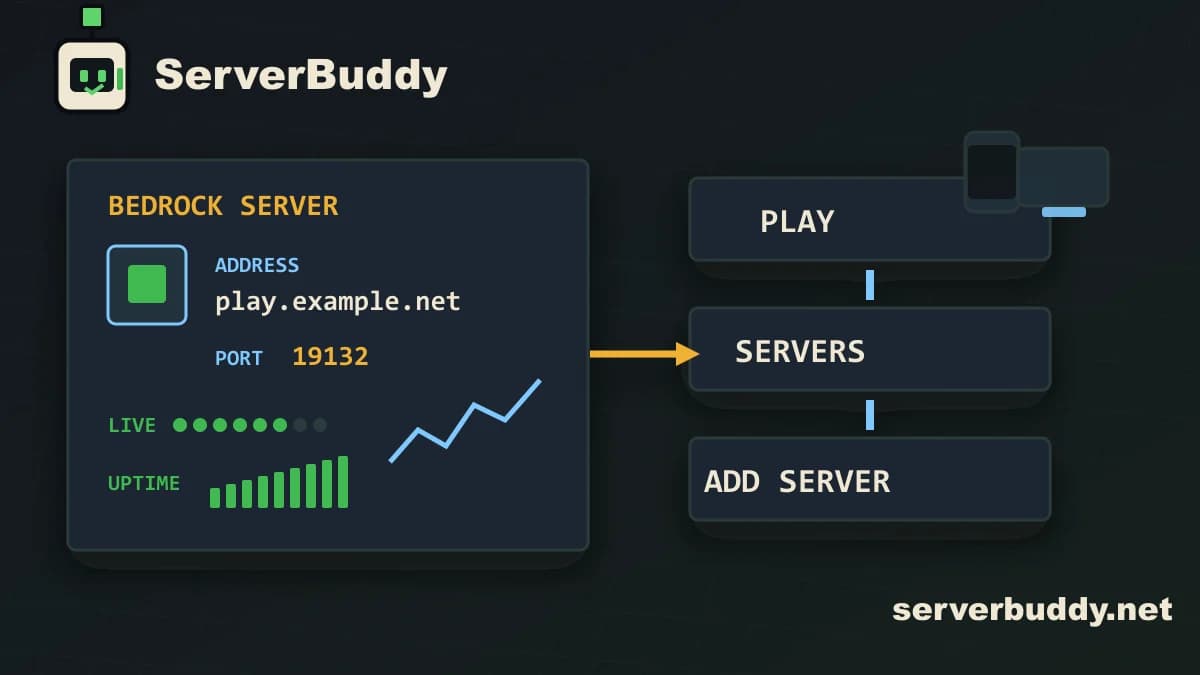
To join a Minecraft Bedrock server, open Minecraft, select Play, go to the Servers tab, scroll down to Add Server, then enter the server name, address, and port. Choose Play to join once or Save to keep the server in your list. Minecraft's own server guide gives the same basic path for unlisted Bedrock servers: use the Servers tab, choose Add Server, enter the address, add the port if needed, then play or save.
This guide is for Minecraft Bedrock on Windows, Android, iPhone, iPad, Xbox, Switch, and PlayStation. Custom server entry is simplest on Windows and mobile. Consoles can be more limited, so there is a separate section for Xbox, Switch, and PlayStation below.
Quick steps
| Step | What to do |
|---|---|
| 1 | Find a Bedrock server address and port. |
| 2 | Open Minecraft Bedrock. |
| 3 | Select Play. |
| 4 | Open the Servers tab. |
| 5 | Scroll down and select Add Server. |
| 6 | Enter any name you want in Server Name. |
| 7 | Paste the server address in Server Address. |
| 8 | Enter the server port. |
| 9 | Select Play or Save. |
The name field is just a label for your own server list. The address and port are the parts that have to be correct.
What you need before you join
You need three things before joining a Bedrock server:
| Field | What it means | Example |
|---|---|---|
| Server name | A nickname shown in your saved list | My Survival Server |
| Server address | The domain or IP address of the server | play.example.net |
| Port | The Bedrock network port | 19132 or a custom port |
You also need to make sure the server is actually a Bedrock server. Java server addresses usually will not work in Bedrock unless the server specifically supports crossplay through extra software. ServerBuddy's Bedrock server list is useful here because it only shows Bedrock listings and includes the address, port, player count, uptime, and activity signals for each listing.
How to find a Bedrock server address on ServerBuddy
Open the live Minecraft Bedrock servers list. ServerBuddy tracks Bedrock listings for consoles, mobile, and Windows Bedrock, and ranks them using live player count, uptime, and recent activity.
| ServerBuddy field | Why it matters |
|---|---|
| Edition | Make sure it says Bedrock. |
| Address | This goes into the Server Address field in Minecraft. |
| Port | Copy this exactly if it is shown. |
| Players online | Shows whether people are playing right now. |
| Weekly peak | Helps you spot servers that are active at other times of day. |
| Uptime | Helps you avoid servers that are often unreachable. |
| Version | Helps you avoid outdated client or outdated server errors. |
A server with 0 players is not always dead. It may be quiet right now. A server with a good weekly peak and strong uptime may still be worth trying.
Active Bedrock servers to compare
These live Bedrock listings show player count, uptime and version support before you copy an address and port.
Windows and mobile Bedrock steps
- Open Minecraft.
- Select Play.
- Go to the Servers tab.
- Scroll below the featured servers.
- Select Add Server.
- Type a name in Server Name. This can be anything.
- Paste the Bedrock server address in Server Address.
- Enter the port shown on the listing.
- Select Play to connect now, or Save to keep it for later.
If Minecraft asks you to download a resource pack, read the prompt before accepting. Some servers use packs for custom menus, textures, or minigames. If the download fails, try leaving the server, restarting Minecraft, and joining again.
Xbox, Switch, and PlayStation
Bedrock on consoles uses the same Bedrock edition, but custom public server entry can be more restricted than it is on Windows and mobile.
- Open Minecraft.
- Sign in with your Microsoft account.
- Select Play.
- Check the Servers tab for featured servers.
- Check Friends for friend-hosted worlds.
- Use Realms if you were invited to a Realm.
Minecraft says multiplayer requires being signed in with a Microsoft account. If your account is a child account, family safety or multiplayer settings may also block online play.
Some public servers provide console-specific instructions for joining with custom addresses. Be careful with third-party workarounds. Do not enter your Microsoft password into an unofficial app or website. If a method asks you to change DNS settings, only use instructions from a source you trust and understand.
Bedrock vs Java: do not mix editions
A common mistake is trying to paste a Java server address into Bedrock. Java and Bedrock are different editions with different server systems. ServerBuddy's Bedrock list also notes that Java and Bedrock servers are not cross-compatible by default.
| Detail | Bedrock server | Java server |
|---|---|---|
| Used by | Windows Bedrock, mobile, consoles | Minecraft: Java Edition on PC, Mac, Linux |
| Menu | Play > Servers | Multiplayer |
| Port field | Separate port field | Often included in the address or uses default |
| Common default port | 19132 | 25565 |
| Server list to use | Bedrock servers | Java servers |
Some servers support both editions through crossplay plugins or proxies, but you should not assume that. If a listing says Bedrock, use Bedrock. If it says Java, use Java.
What to check before joining
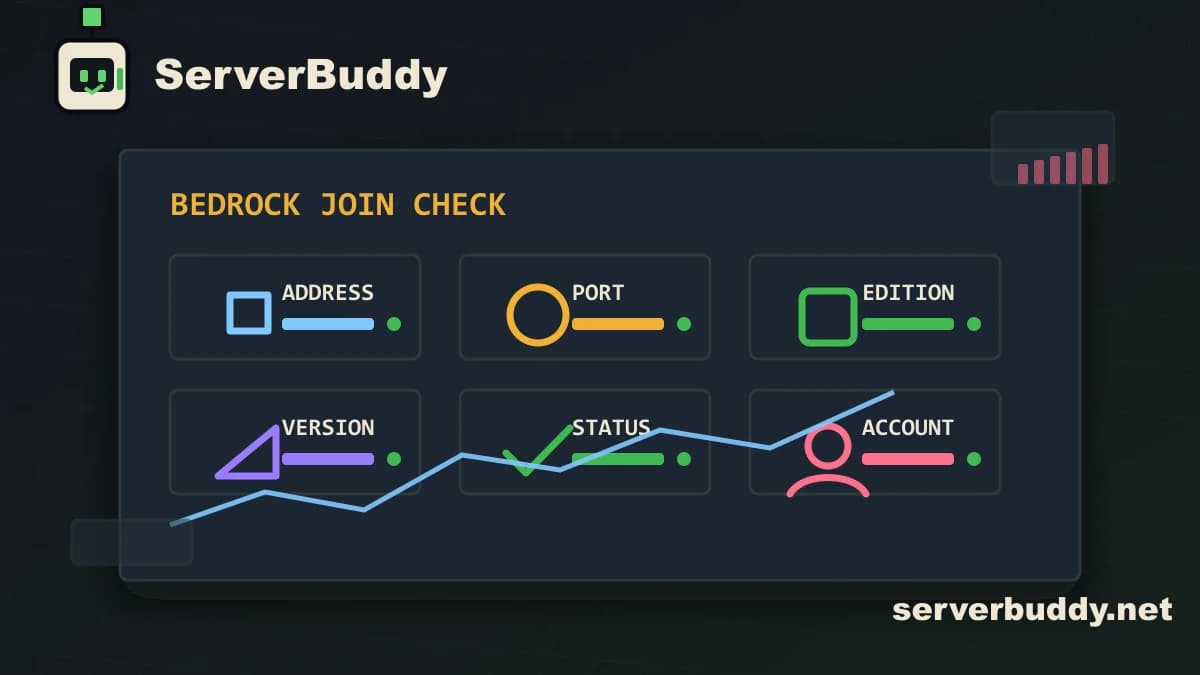
| Check | What to look for |
|---|---|
| Edition | The listing should say Bedrock. |
| Address | No extra spaces, no missing letters, no copied punctuation. |
| Port | Use the exact port from the listing. |
| Status | The server should respond publicly. |
| Version | Your Minecraft version should be compatible. |
| Player slots | A full server may reject new players. |
| Whitelist | Private servers may block players who are not added. |
| Account settings | Microsoft account and multiplayer settings must allow online play. |
Minecraft also warns that your game version needs to match the server version. If you are using a Preview or beta version, you may need to switch back to the regular release before joining public servers.
Common Bedrock join errors
| Error or problem | Likely cause | What to try |
|---|---|---|
| Unable to connect to world | Wrong address, wrong port, offline server, blocked account settings, or a private world | Check the address and port, test the server status, restart Minecraft, and check multiplayer permissions. |
| Outdated client | Your Minecraft app is behind the server version | Update Minecraft from your device's store or launcher. |
| Outdated server | The server has not updated yet | Try another server or wait for the server owner to update. |
| Invalid IP address | The address was typed incorrectly | Copy the address again. Remove spaces and punctuation. |
| Server full | The server has no open player slots | Wait, refresh the listing, or pick another server. |
| You are not whitelisted | The server only allows approved players | Ask the server owner to add your gamertag. |
| Resource pack failed | The server pack did not download or apply correctly | Rejoin, restart Minecraft, or clear cached packs if the problem keeps happening. |
| Add Server is missing on console | Console Bedrock may limit custom server entry | Use featured servers, Realms, friends, or the server's console-specific instructions. |
How to check if a Bedrock server is online
Use the Minecraft server status checker before trying the same address over and over. Enter the server address and port, then run the check.
ServerBuddy's checker can test Java and Bedrock addresses, auto-detect the edition, resolve DNS and SRV records, and show latency, version, protocol, players, MOTD, icon, and failure reasons. It can also show whether the problem looks like DNS failure, timeout, connection refused, or an invalid response.
This is useful when a friend says the server is online but Minecraft still refuses to connect. If the checker cannot reach the server either, the issue is probably not your device. If the checker sees the server, recheck your edition, port, version, and account settings.
Safe joining tips
Public Minecraft servers can include chat, user-made builds, links, and community rules. Before settling into a server, read the rules, avoid sharing personal information, and do not click random links from chat. Use your Microsoft account only inside official Minecraft or Microsoft sign-in screens.
For younger players, check multiplayer and communication settings before joining public servers. A connection problem may be an account setting, not a server problem.
Where to go next
To find a server now, use the live Bedrock Minecraft server list. Look for a server with the Bedrock edition label, a copied address and port, recent activity, and good uptime.
To test a server before joining, use the Minecraft server status checker.
To compare Bedrock with Java or learn the broader joining process, read the general guide: How to join a Minecraft server. You can also browse the broader Minecraft server list.
FAQ
Where is Add Server in Minecraft Bedrock?
Open Minecraft, select Play, open the Servers tab, scroll down below the featured servers, then select Add Server. Enter the server name, address, and port, then choose Play or Save.
What port do I use for a Bedrock server?
Use the port shown on the server listing. Many Bedrock servers use 19132, but custom ports exist. If ServerBuddy shows a port, copy it exactly.
Can Bedrock join Java servers?
Not by default. Bedrock players should join Bedrock servers. Some servers support Java and Bedrock crossplay, but the server listing or owner should say that clearly.
Why can't I add a server on Xbox or Switch?
Console Bedrock can be more limited than Windows and mobile Bedrock. Use featured servers, Realms, friends, or the server's console-specific instructions. Be careful with unofficial DNS or app-based workarounds.
Why does Minecraft Bedrock say Unable to connect to world?
The most common causes are a wrong address, wrong port, offline server, version mismatch, full server, whitelist, or blocked multiplayer settings. Test the address with ServerBuddy's status checker, then recheck the edition, port, and Minecraft version.
Do I need a Microsoft account to join Bedrock servers?
Yes. Minecraft's official multiplayer guide says you need to be signed in with a Microsoft account to play multiplayer.
How do I know if a Bedrock server is online?
Run the address through the ServerBuddy status checker. It can show whether the server responds, what edition it uses, its latency, version, player count, MOTD, and failure reason if the check fails.
Can I save a Bedrock server for later?
Yes. After entering the server name, address, and port, select Save instead of only joining once. The server should stay in your Bedrock server list unless you remove it.